
Microsoft 365 Copilot: Overview & Key Concepts - January 2026

Introduction to Microsoft 365 Copilot
What is Copilot?
Microsoft 365 Copilot is an AI assistant built directly into the Microsoft 365 apps you already use, for example, Word, Excel, PowerPoint, Outlook, and Teams. Think of it as a knowledgeable intern who can help you write, analyse data, create presentations, and manage your communications.
Under the hood, Copilot uses advanced AI models (similar to ChatGPT) combined with your work data. When you're in "Work" mode, Copilot can access your documents, emails, calendar, and chat history, but only the information you personally have permission to see. This means it can give you answers grounded in your actual work context, not just general internet knowledge.
How is Copilot Different from ChatGPT?
While Copilot uses similar AI technology to ChatGPT and Google's Gemini, the key difference lies in its integration. Copilot is woven into your Microsoft 365 environment. It understands what you're working on and can pull relevant information from across your organisation's files and communications. This introduction will explore how this integration works and how to make the most of it.
Two Ways to Use Copilot
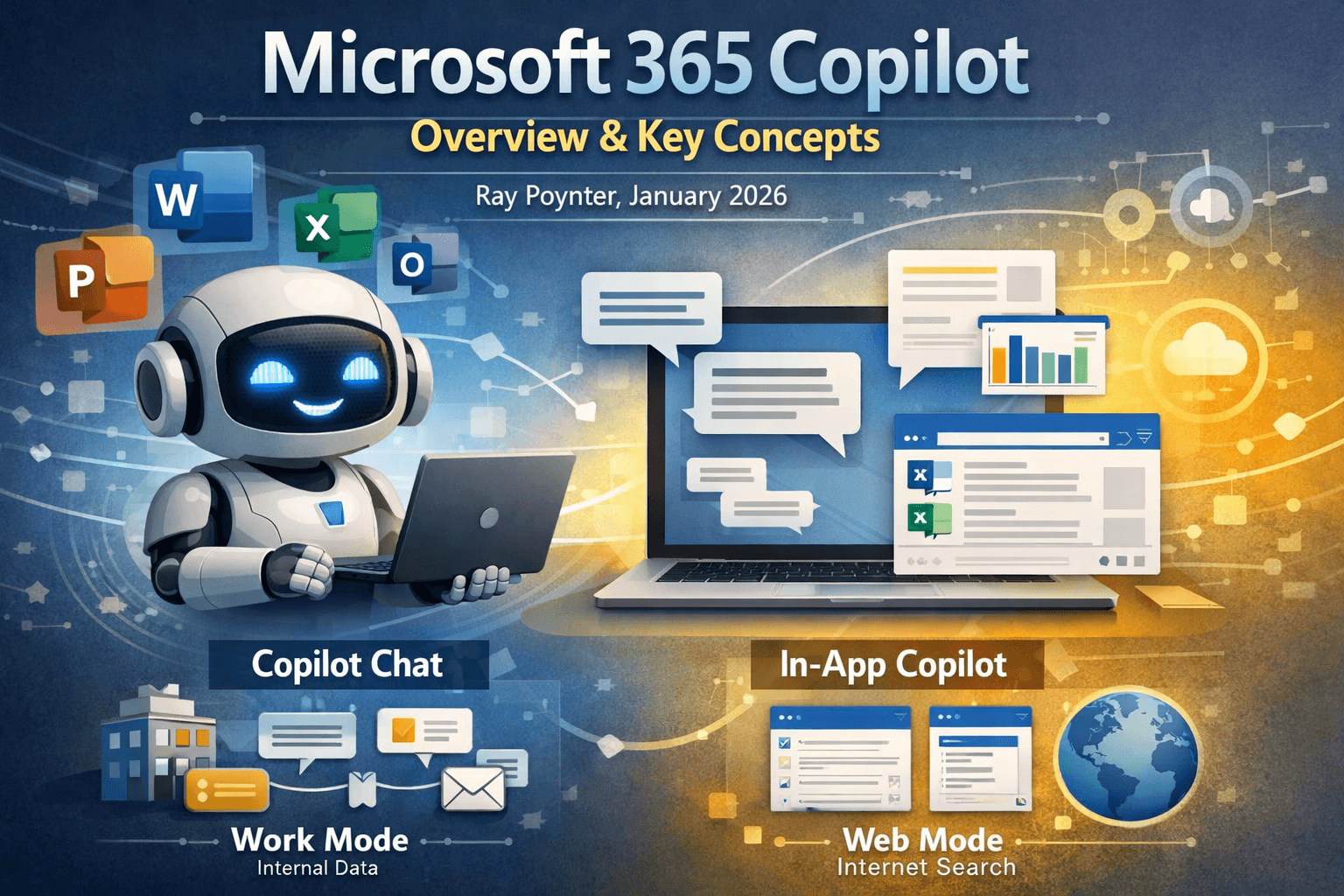
Copilot Chat (The Standalone Interface)
Copilot Chat is a conversational window where you can ask questions or give instructions in plain English. You'll find it in the Microsoft 365 app (web or desktop), within Teams, or in the Edge browser sidebar.
Example: "Summarise my project notes and draft an email update to the team." In Work mode, Copilot can draw on your files, emails, and calendar to produce a tailored response.
In-App Copilot (Built into Office Apps)
Copilot also appears as a sidebar or ribbon button directly within Word, Excel, PowerPoint, Outlook, and OneNote. When you use it here, Copilot automatically understands the context of your current document, spreadsheet, or email, no need to explain what you're working on.
Example: In Word, click the Copilot icon and ask it to "rewrite this paragraph to be more formal" or "create a summary of this document." In Excel, you might ask, "What are the trends in this data?"
Which Should You Use?
Copilot Chat is best for broad, cross-application tasks—when you need to pull together information from multiple sources or have a multi-step conversation with the AI.
In-App Copilot is best when you're focused on a specific document and want quick, targeted help without switching apps.
Work Mode vs Web Mode
In Copilot Chat, you can toggle between two modes that determine where Copilot looks for information:
Work Mode
Copilot's answers are based on your organisation's internal data—your documents on OneDrive and SharePoint, your emails and calendar, internal wiki pages, and chat history. Use this for work-specific tasks like drafting emails, summarising internal documents, checking your schedule, or finding company policies.
Example: "What is our team's travel policy?" Copilot will search your internal files (like a policy document on SharePoint) to find the answer.
Web Mode
Copilot's answers come from public web sources via Bing. Use this for general research, finding external information, or getting the latest news.
Example: "Find recent news on marketing industry trends." Copilot will search the web and summarise what it finds.
Security note: Both modes maintain a level of security. Work mode only shows you data you already have permission to access—it won't expose other people's private files or emails. Your organisation's IT team can configure additional controls over how Copilot uses data.
Using Copilot in Office Apps
Copilot in Word
Your AI writing assistant. Copilot can draft documents, help you brainstorm, and refine your writing.
"Write an introduction for this report"
"Summarise the key points of this document"
"Rewrite this paragraph to be more formal"
"Give me an outline for a proposal about [topic]"
Think of it as a smart co-author. You're always in control—edit, refine, or reject its suggestions as you see fit.
Copilot in Excel
Your data analyst partner. Copilot helps you understand spreadsheet data, create visualisations, and automate calculations, especially useful if you find complex formulas challenging.
"What are the main trends in this sales data?"
"Create a chart showing expenses by category"
"Write a formula to calculate year-over-year growth"
"Create a PivotTable summarising this data"
Copilot in PowerPoint
Your slide designer and storytelling aide. Copilot can generate presentations from scratch or help you polish existing ones.
"Create a 5-slide presentation based on this Word document"
"Add speaker notes to each slide"
"Summarise this paragraph into bullet points"
"Make the tone of this slide more upbeat"
Tip: Copilot can pull information from documents stored on SharePoint or OneDrive. For example, you could ask it to create slides based on a report you wrote last month.
Copilot in Outlook and Teams
Copilot in Outlook
An email triage and drafting assistant. Copilot helps you manage your inbox more efficiently.
Catch up quickly: "Summarise the key decisions from this email thread" gives you the highlights without reading dozens of replies.
Draft responses: "Write a polite reply thanking the team and asking for next steps."
Scheduling help: If someone emails about setting up a meeting, Copilot can help turn that into a calendar invite or suggest available times.
Copilot in Teams
Your AI facilitator for meetings and team conversations.
During meetings: Get real-time summaries of what's being discussed.
Missed a meeting? Ask "What did I miss?" for a quick recap of discussion points and decisions.
Action items: "List the tasks and next steps mentioned in this meeting."
Chat channels: "Summarise the recent conversation in the project channel."
Note: Copilot only summarises content you have access to, it won't show you private chats or meetings you weren't part of.
Best Practices and Considerations
1. Follow Your Organisation's AI Policies
Your company may have specific guidelines about using AI tools. While Copilot has built-in privacy and compliance features, consult your IT or data security team if you're unsure about particular use cases, especially involving confidential data.
2. Understand Data Privacy
Copilot uses the same permission system as the rest of Microsoft 365. It only accesses data you personally can see, no data leaks between users. Your prompts and Copilot's responses are not used to train public AI models. That said, avoid entering highly sensitive personal or client data unless necessary.
3. Always Verify Important Information
Like any AI, Copilot can occasionally produce incorrect information confidently, sometimes called "hallucinations." Always double-check essential facts, figures, or summaries against the source documents. When Copilot cites sources (in Work or Web mode), use those references to verify accuracy.
4. Write Clear Prompts
The quality of Copilot's output depends on how clearly you ask. Vague questions get vague answers.
Instead of: "Remind team about deadline"
Try: "Draft a brief email (3-4 sentences) to remind the team about the Monday deadline, in a friendly tone."
Include context, specify the format you want, and mention the tone. If the first result isn't right, rephrase or add more detail.
5. You're the Editor-in-Chief
Plan to review and edit everything Copilot produces. It's easier to refine an AI-generated draft than to write from scratch, but final responsibility lies with you. Check for factual accuracy and tone, and ensure that no confidential information was accidentally included.
6. Use AI Ethically
Copilot follows Microsoft's Responsible AI principles and won't intentionally produce harmful content. However, don't misuse it, requesting harassing content or biased analyses violates both the tool's policies and professional ethics. For sensitive communications, such as performance reviews or HR matters, always apply human judgment, even when Copilot helps with drafting.
Want to Know More about AI and how you can use it?
Check out the following: